

BI Publisher in Oracle Fusion is a core reporting engine that organizations rely on for accurate, timely, and customized operational insights. While basic reports are easy to build, modern enterprises often need highly tailored, multi-source, multi-level reports that support audits, financial operations, supplier management, compliance, and executive decision-making. Delivering this level of reporting requires a strong understanding of Fusion’s data architecture, SQL-based data modeling, XML structuring, and automated bursting capabilities.
This guide outlines how to build complex, enterprise-grade BI Publisher reports in Oracle Fusion by creating optimized SQL data models, structuring hierarchical XML, enabling automated bursting, and applying performance best practices. These techniques help teams deliver scalable reports that reduce manual effort, improve data accuracy, and support faster decision-making across key business functions.
Prerequisites and Setup
Required Roles and Privileges
- BI Publisher Administrator: To create and manage reports
- Application Implementation Consultant: Access to data models
- Database access: Query privileges on Fusion tables
Development Environment
- BI Publisher Desktop (optional but recommended for template development)
- SQL or PL/SQL Developer or a similar tool for query testing
- Understanding of the Oracle Fusion data model
Understanding the Architecture
Gain clarity on how BI Publisher components work together so that reports are structured, scalable, and aligned with Fusion’s data framework.
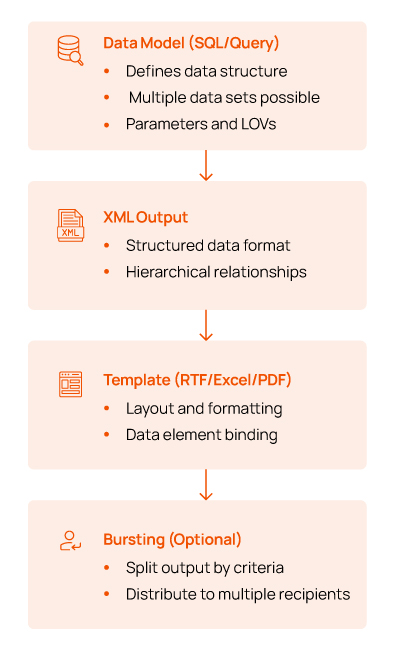
Components of a BI Publisher Report
Building Complex SQL Data Models
Learn how to design efficient multi-dataset SQL models that retrieve accurate data from Fusion tables and support layered reporting needs.
- Data Model: The data model is the source of data, where the developer can write the SQL code as per requirement.
- Report: The report is the representation layer where the developer has to attach the templates (RTF, E-Text, Excel, XSLT, etc.). The report needs to be linked with the data model to extract data.
Let us go ahead and create the data model and report in Oracle SaaS.
Step 1: Create a Data Model in BI Publisher
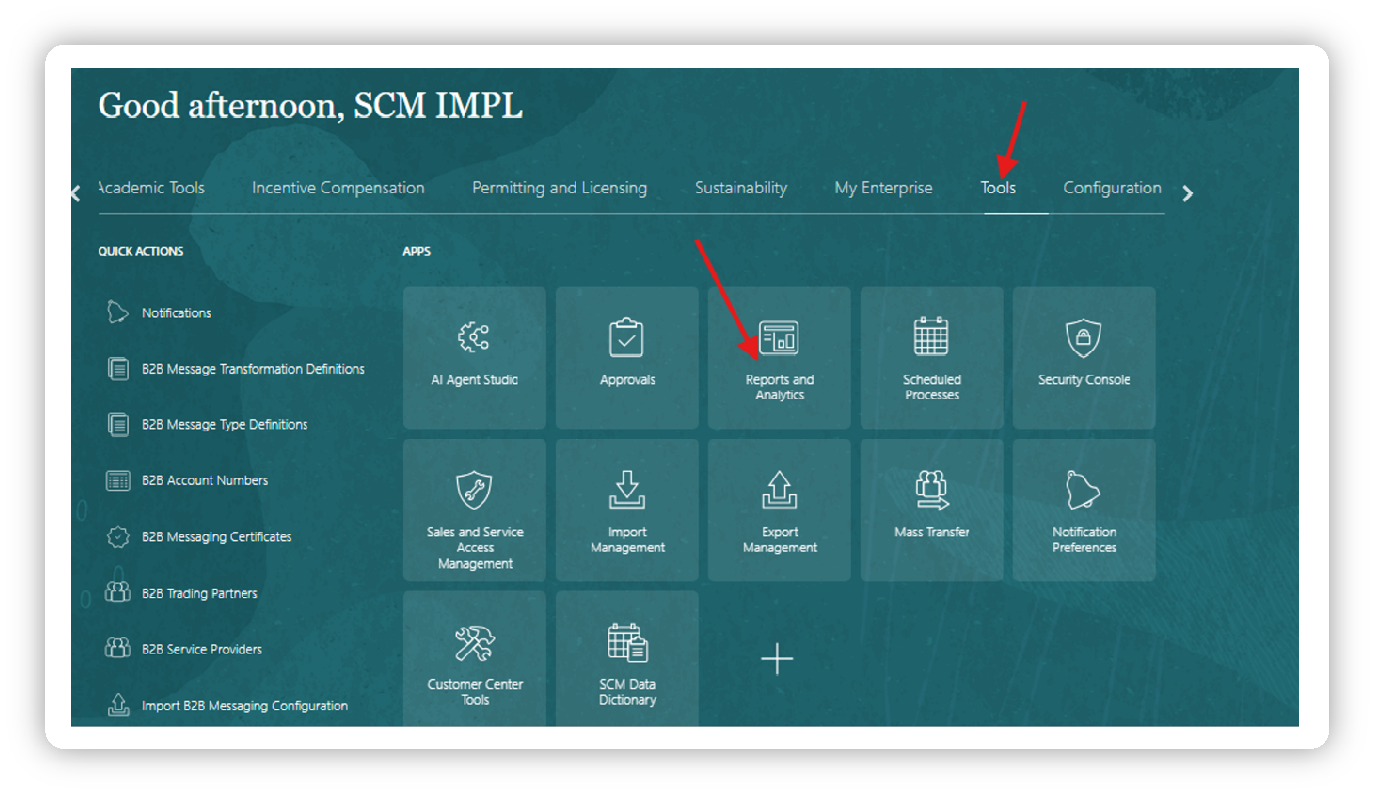
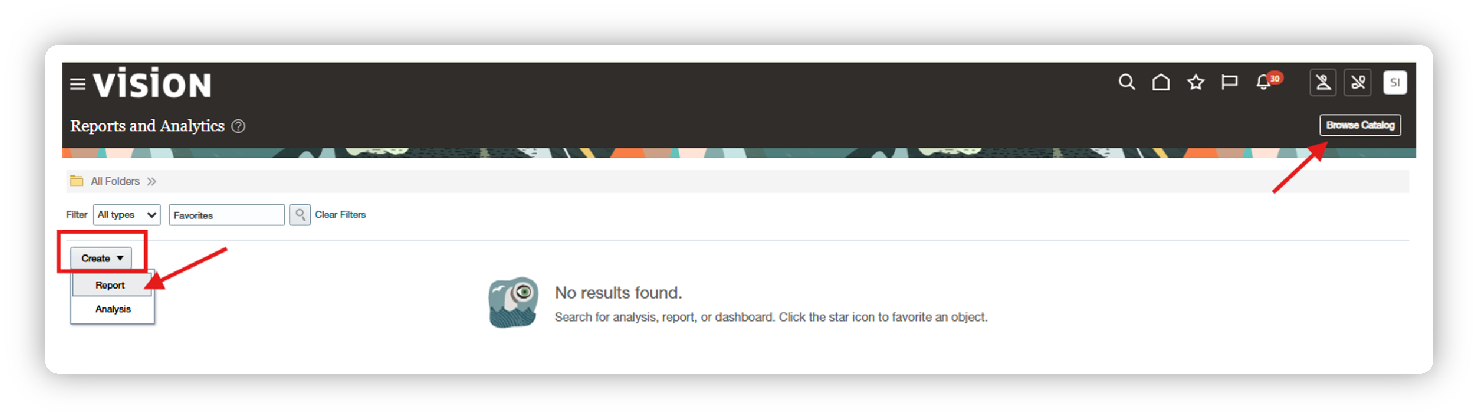
Navigate to: Tools > Reports and Analytics > Browse CatLog > Create and Report > Create > Data Model
(BI Publisher Console → Data Models → Create Data Model)
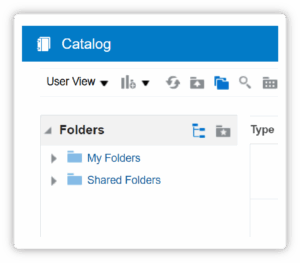
The analytics catalog page contains two folders (My Folders and Shared Folders) as shown below. My Folders is only accessible to the logged-in user; however, Shared Folders will be accessible to all users.
Note: It is always suggested to develop the report and data model in My Folders, and, post-development, migrate them to Shared Folders.
Example: Complex Invoice Report with Multiple Datasets
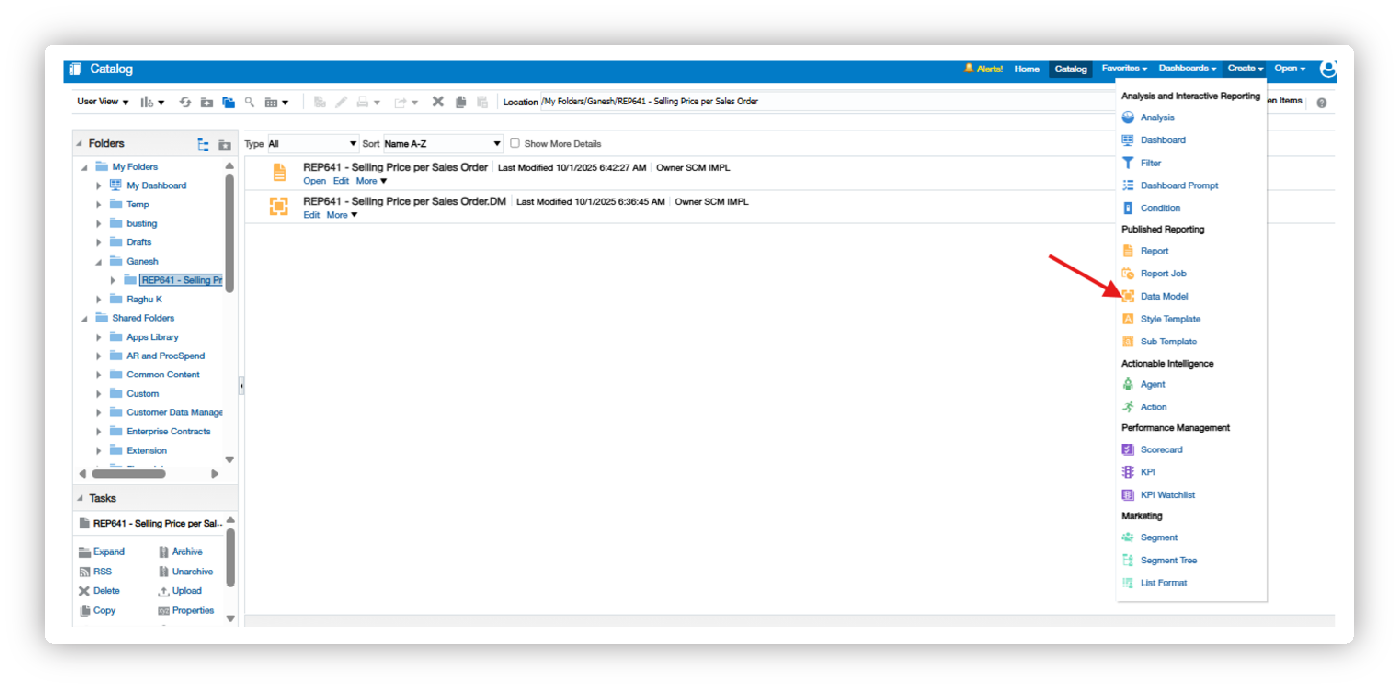
Navigate to: My Folders and click on New -> Data Model as shown below:
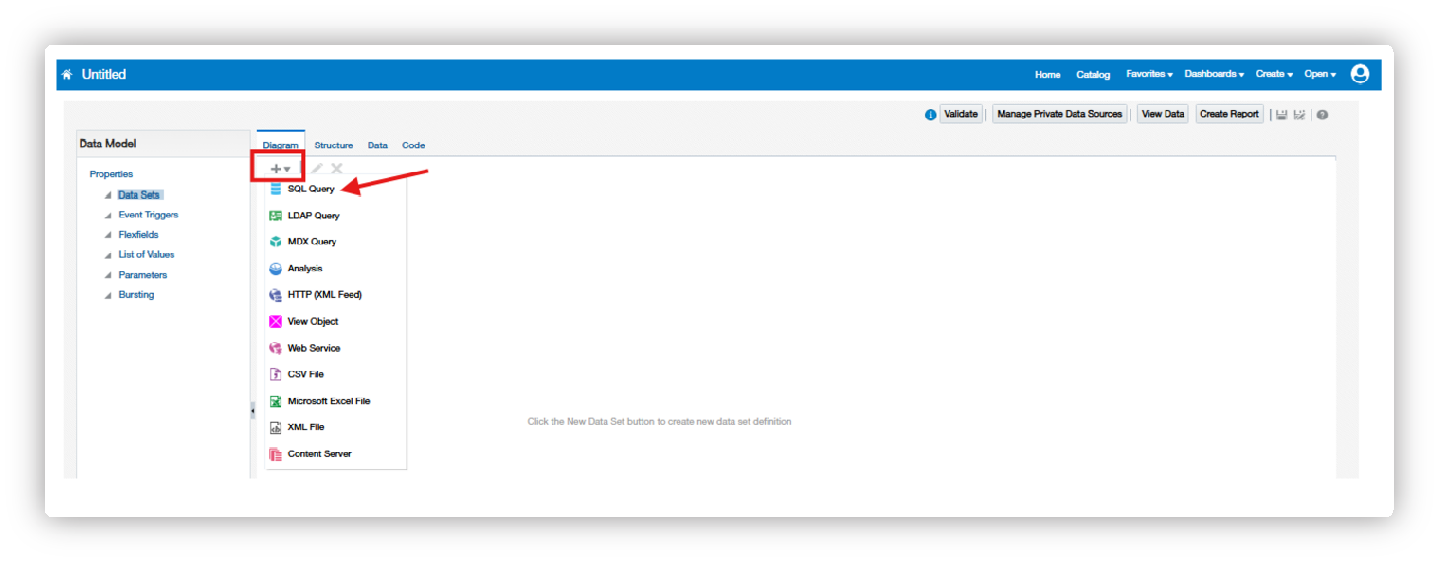
Once the data model is opened, click on Data Sets, click the + icon, and select SQL Query to start writing the SQL code.
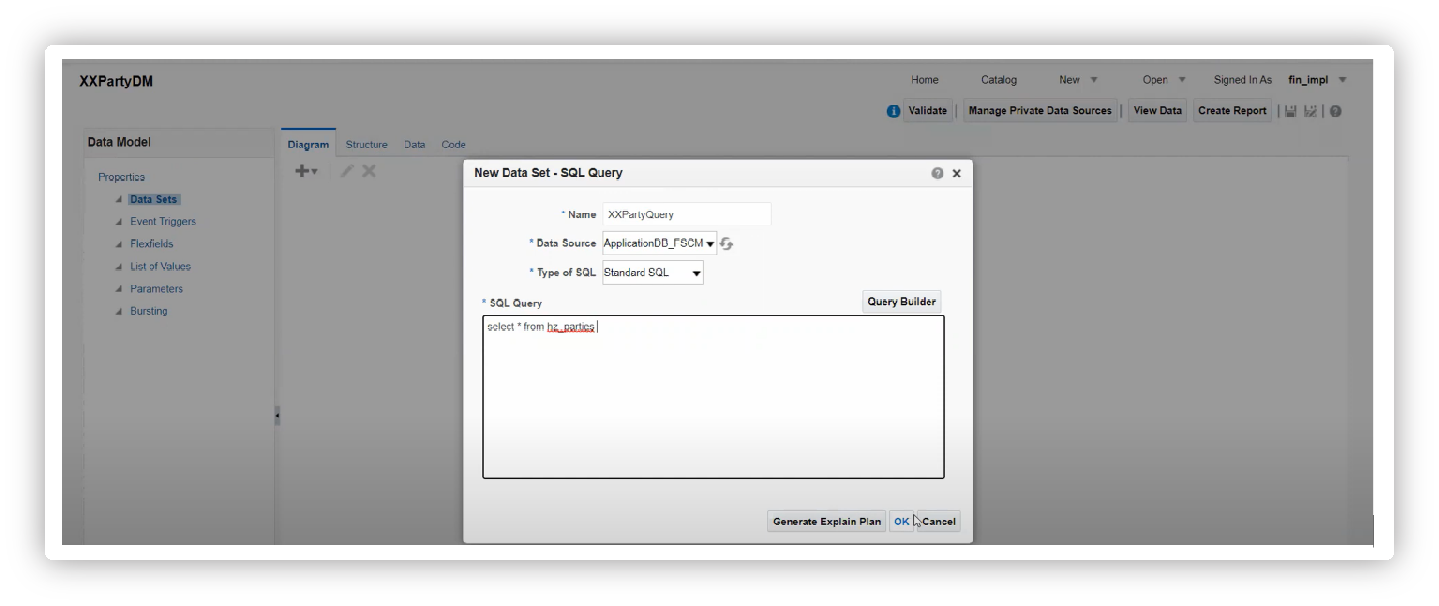
The developer has to provide Name, Data Source, and Type of SQL, and proceed with writing the SQL code in the text area as shown below, and click OK to validate.
Main Query – Invoice Headers
SELECT
ai.invoice_id,
ai.invoice_num,
ai.invoice_date,
ai.invoice_amount,
ai.invoice_currency_code,
ai.payment_status_flag,
ai.invoice_type_lookup_code,
— Supplier Information
pv.vendor_id,
hp.party_name supplier_name,
pv.segment1 AS supplier_number,
pv.vendor_type_lookup_code,
hp.email_address AS supplier_email,
— Supplier Site
pvs.vendor_site_id,
pvs.vendor_site_code,
pvs.purchasing_site_flag,
pvs.pay_site_flag,
— Location Details
loc.address1,
loc.address2,
loc.city,
loc.state,
loc.postal_code,
loc.country,
— Business Unit
ou.bu_name AS operating_unit,
ou.bu_id,
— Invoice Details
ai.description,
ai.gl_date,
ai.payment_method_code,
ai.source,
— Audit Information
ai.created_by,
TO_CHAR(ai.creation_date, ‘DD-MON-YYYY HH24:MI:SS’) AS creation_date_str,
ai.last_updated_by,
TO_CHAR(ai.last_update_date, ‘DD-MON-YYYY HH24:MI:SS’) AS last_update_date_str
FROM
ap_invoices_all ai
INNER JOIN poz_suppliers pv
ON ai.vendor_id = pv.vendor_id
INNER JOIN hz_parties hp
ON pv.party_id = hp.party_id
INNER JOIN poz_supplier_sites_all_m pvs
ON ai.vendor_site_id = pvs.vendor_site_id
LEFT JOIN hz_party_sites ps
ON pvs.party_site_id = ps.party_site_id
LEFT JOIN hz_locations loc
ON ps.location_id = loc.location_id
INNER JOIN fun_all_business_units_v ou
ON ai.org_id = ou.bu_id
WHERE
ai.invoice_date BETWEEN :P_START_DATE AND :P_END_DATE
AND ai.org_id = :P_ORG_ID
AND pv.enabled_flag = ‘Y’
ORDER BY
ai.invoice_num
Child Query – Invoice Lines
SELECT
ail.invoice_id,
ail.line_number,
ail.line_type_lookup_code,
ail.amount AS line_amount,
ail.quantity_invoiced,
ail.unit_price,
ail.description AS line_description,
ail.accounting_date,
gcc.concatenated_segments AS charge_account,
pol.item_description,
msib.item_number AS item_code — Fusion uses ITEM_NUMBER instead of SEGMENT1
FROM
ap_invoice_lines_all ail
LEFT JOIN ap_invoice_distributions_all aid
ON ail.invoice_id=aid.invoice_id
LEFT JOIN gl_code_combinations gcc
ON aid.dist_code_combination_id = gcc.code_combination_id
LEFT JOIN po_lines_all pol
ON ail.po_line_id = pol.po_line_id
LEFT JOIN EGP_SYSTEM_ITEMS_B msib
ON ail.inventory_item_id = msib.inventory_item_id
AND ail.org_id = msib.organization_id
ORDER BY
ail.invoice_id, ail.line_number;
Child Query – Distributions
SELECT
aid.invoice_id,
aid.invoice_line_number,
aid.distribution_line_number,
aid.amount as dist_amount,
aid.accounting_date as dist_accounting_date,
gcc.concatenated_segments as distribution_account,
gcc.segment1 as company,
gcc.segment2 as department,
gcc.segment3 as account,
gcc.segment4 as sub_account,
aid.description as dist_description
FROM
ap_invoice_distributions_all aid,
gl_code_combinations gcc
WHERE
aid.dist_code_combination_id = gcc.code_combination_id
ORDER BY
aid.invoice_id,
aid.invoice_line_number,
aid.distribution_line_number
Step 2: Configure Data Set Relationships
In BI Publisher Data Model Editor:
Create Parent-Child Links:
1. Main Query (G_INVOICES) – Parent
2. Lines Query (G_LINES) – Child of G_INVOICES
- Link: G_INVOICES.INVOICE_ID = G_LINES.INVOICE_ID
3. Distributions (G_DIST) – Child of G_LINES
- Link: G_LINES.INVOICE_ID = G_DIST.INVOICE_ID AND G_LINES.LINE_NUMBER = G_DIST.INVOICE_LINE_NUMBER
Step 3: Add Parameters
— Parameter: P_START_DATE
Data Type: Date
Default Value: SYSDATE – 30
— Parameter: P_END_DATE
Data Type: Date
Default Value: SYSDATE
— Parameter: P_ORG_ID
Data Type: Integer
List of Values:
SELECT bu_id as value, bu_name as display
FROM fun_all_business_units_v
ORDER BY bu_name
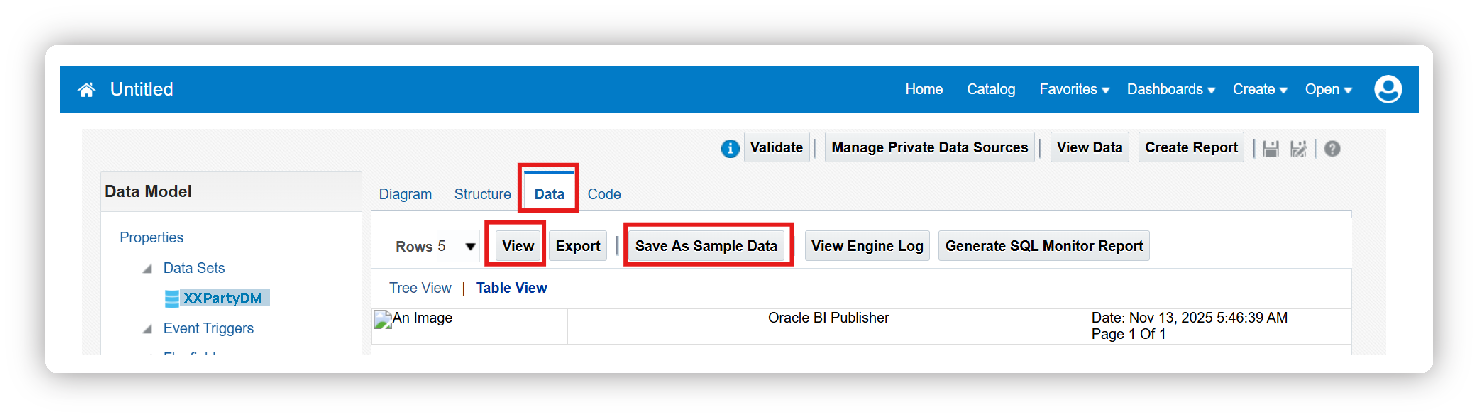
To view data, click on the Data tab and click on View. Before proceeding with the report development, click on Save As Sample Data and save the data model.
XML Data Structure and Optimization
Understand how BI Publisher generates hierarchical XML and how to optimize it for faster processing, cleaner templates, and better report performance. Understanding BI Publisher XML Output When you execute the data model, BI Publisher generates XML like this:<?xml version=”1.0″ encoding=”UTF-8″?>
<DATA_DS>
<G_INVOICES>
<INVOICE_ID>123456</INVOICE_ID>
<INVOICE_NUM>INV-2025-001</INVOICE_NUM>
<INVOICE_DATE>2025-01-15</INVOICE_DATE>
<INVOICE_AMOUNT>50000</INVOICE_AMOUNT>
<VENDOR_NAME>ABC Corporation</VENDOR_NAME>
<VENDOR_NUMBER>V001</VENDOR_NUMBER>
<OPERATING_UNIT>US Operations</OPERATING_UNIT>
<G_LINES>
<INVOICE_ID>123456</INVOICE_ID>
<LINE_NUMBER>1</LINE_NUMBER>
<LINE_AMOUNT>30000</LINE_AMOUNT>
<DESCRIPTION>Consulting Services</DESCRIPTION>
<G_DIST>
<DIST_AMOUNT>15000</DIST_AMOUNT>
<DISTRIBUTION_ACCOUNT>01-100-5000-000</DISTRIBUTION_ACCOUNT>
<COMPANY>01</COMPANY>
<DEPARTMENT>100</DEPARTMENT>
</G_DIST>
<G_DIST>
<DIST_AMOUNT>15000</DIST_AMOUNT>
<DISTRIBUTION_ACCOUNT>01-200-5000-000</DISTRIBUTION_ACCOUNT>
</G_DIST>
</G_LINES>
<G_LINES>
<LINE_NUMBER>2</LINE_NUMBER>
<LINE_AMOUNT>20000</LINE_AMOUNT>
<DESCRIPTION>Hardware Purchase</DESCRIPTION>
</G_LINES>
</G_INVOICES>
<G_INVOICES>
<!– Next invoice –>
</G_INVOICES>
</DATA_DS>
XML Optimization Techniques
- Use SQL to pre-aggregate data rather than complex template logic.
- Limit result sets with appropriate WHERE clauses.
- Index columns used in JOIN conditions.
- Avoid SELECT * – specify only needed columns.
- Use bind variables for better performance.
XML Bursting Implementation
XML bursting allows you to split a single report into multiple outputs and deliver them to different recipients based on criteria.
Bursting Control File Structure
Create a bursting control file in your data model:
— Bursting Query
SELECT DISTINCT
ai.org_id as KEY,
ou.name as TEMPLATE,
‘en-US’ as LOCALE,
‘true’ as SAVE_OUTSIDE,
‘/Reports/Invoices/’ || ou.name || ‘/’ as OUTPUT_NAME,
‘Invoice_Report_’ || TO_CHAR(SYSDATE, ‘YYYYMMDD’) as OUTPUT_NAME_PREFIX,
‘pdf’ as OUTPUT_FORMAT,
‘[email protected]’ as PARAMETER1,
hp.party_name as PARAMETER2 –pv.vendor_name as PARAMETER2,
‘oracle.apps.ap’ as PARAMETER3
FROM
ap_invoices_all ai,
fun_all_business_units_v ou,
poz_suppliers pv,
hz_parties hp
WHERE
ai.org_id = ou.organization_id
AND ai.vendor_id = pv.vendor_id
AND pv.party_id = hp.party_id
AND ai.invoice_date BETWEEN :P_START_DATE AND :P_END_DATE
Bursting Control File Elements
| Element | Purpose | Example |
|---|---|---|
| KEY | Split criterion (must match data grouping) | org_id, vendor_id |
| TEMPLATE | Template name or parameter | ‘InvoiceTemplate’ |
| LOCALE | Language locale | ‘en-US’, ‘es-MX’ |
| OUTPUT_FORMAT | Output file format | ‘pdf’, ‘excel’, ‘rtf’ |
| OUTPUT_NAME | File name/path | ‘Invoice_’ |
| SAVE_OUTSIDE | Save to UCM or file system | ‘true’ or ‘false’ |
| DELIVERY | Delivery channel | ‘EMAIL’, ‘FAX’, ‘PRINTER’ |
Advanced Bursting Example: Email Distribution
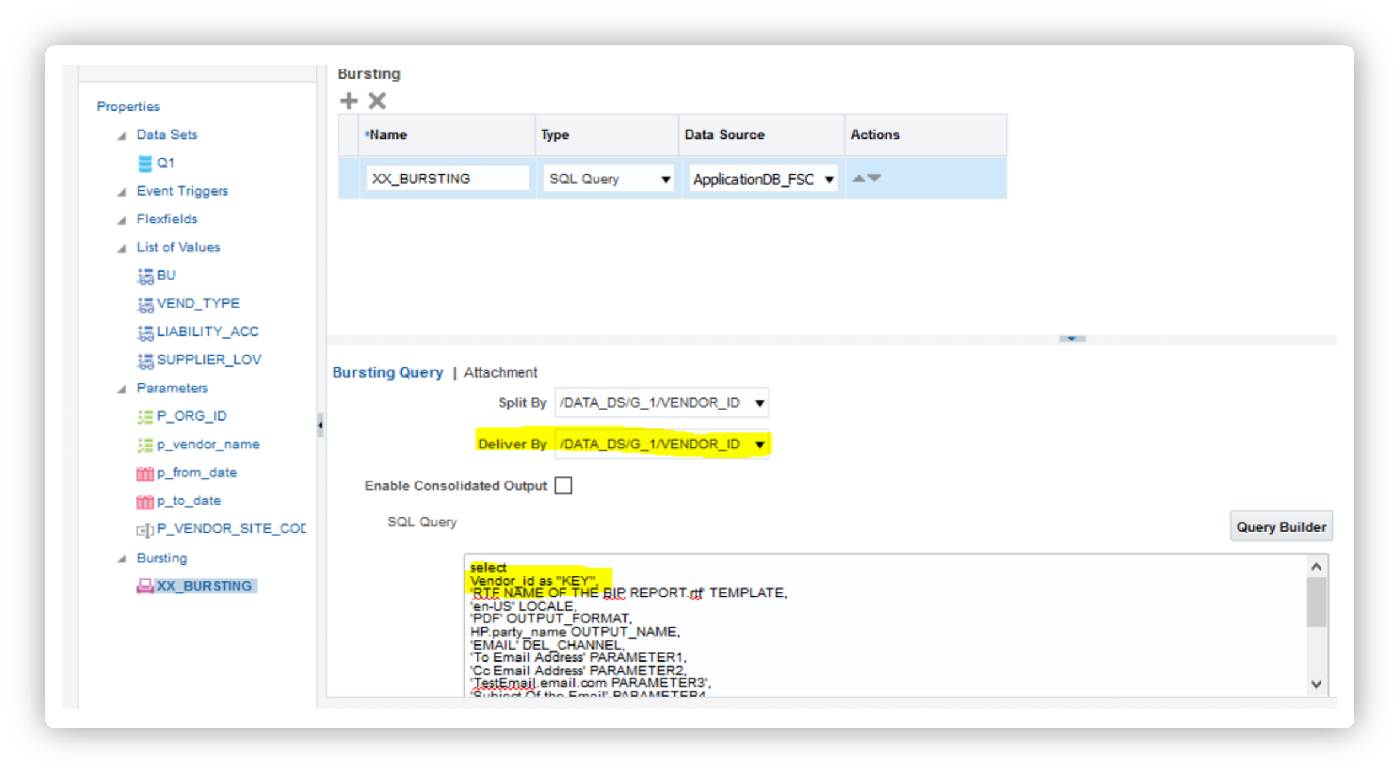
— Email Bursting Control Query
SELECT DISTINCT
ai.vendor_id as KEY,
‘InvoiceDetailTemplate’ as TEMPLATE,
‘en-US’ as LOCALE,
‘pdf’ as OUTPUT_FORMAT,
‘EMAIL’ as DEL_CHANNEL,
hp.party_name || ‘_Invoices_’ ||
TO_CHAR(SYSDATE, ‘YYYYMMDD_HH24MISS’) as OUTPUT_NAME,
hp.email_address as PARAMETER1, — TO recipient
‘[email protected]’ as PARAMETER2, — FROM
‘[email protected]’ as PARAMETER3, — CC
‘Invoice Report for ‘ || pv.vendor_name as PARAMETER4, — Subject
‘Please find attached invoice report for the period ‘ ||
TO_CHAR(:P_START_DATE, ‘DD-MON-YYYY’) || ‘ to ‘ ||
TO_CHAR(:P_END_DATE, ‘DD-MON-YYYY’) as PARAMETER5, — Body
‘true’ as PARAMETER6, — Attach report
‘ucm://server/dDocName:AR_LOGO’ as PARAMETER7 — Additional attachment
FROM
ap_invoices_all ai
INNER JOIN poz_suppliers pv
ON ai.vendor_id = pv.vendor_id
INNER JOIN hz_parties hp
ON pv.party_id = hp.party_id
INNER JOIN poz_supplier_sites_all_m pvs
ON ai.vendor_site_id = pvs.vendor_site_id
LEFT JOIN hz_party_sites ps
ON pvs.party_site_id = ps.party_site_id
LEFT JOIN hz_locations loc
ON ps.location_id = loc.location_id
INNER JOIN fun_all_business_units_v ou
ON ai.org_id = ou.bu_id
WHERE
ai.invoice_date BETWEEN :P_START_DATE AND :P_END_DATE
AND ai.org_id = :P_ORG_ID
AND pv.enabled_flag = ‘Y’
ORDER BY
ai.invoice_num
Bursting Configuration Steps
1. In Data Model Editor:
- Click on the “Bursting” section
- Select “Enable Report Bursting”
- Choose “SQL Query” as bursting definition type
2. Add Bursting Query:
- Paste your bursting control SQL
- Ensure KEY column matches grouping in main query
- Test the query
3. Configure Delivery Options:
| Parameter | Email Configuration in bursting query |
|---|---|
| PARAMETER1 | TO email address |
| PARAMETER2 | FROM email address |
| PARAMETER3 | CC email address |
| PARAMETER4 | Subject line |
| PARAMETER5 | Email body text |
| PARAMETER6 | ‘true’ (attach report) |
4. Set Bursting Properties:
- Split by KEY field
- Apply security settings
- Configure retry logic
Using Flexfields in Reports
— Capturing Descriptive Flexfield values
SELECT
ai.invoice_id,
ai.invoice_num,
ai.attribute1 as dff_segment1,
ai.attribute2 as dff_segment2,
ai.attribute3 as dff_segment3,
fnd_flex_ext.get_segs(
‘SQLAP’,
‘AP_INVOICES’,
ai.org_id,
ai.attribute_category
) as dff_formatted
FROM
ap_invoices_all ai
WHERE
ai.attribute_category IS NOT NULL
Handling Large Data Sets
— Pagination technique
SELECT * FROM (
SELECT
invoice_details.*,
ROWNUM rn
FROM (
SELECT
ai.invoice_id,
ai.invoice_num,
ai.invoice_amount
FROM
ap_invoices_all ai
WHERE
ai.invoice_date BETWEEN :P_START_DATE AND :P_END_DATE
ORDER BY
ai.invoice_date DESC
) invoice_details
WHERE ROWNUM <= :P_MAX_ROWS + :P_OFFSET
)
WHERE rn > :P_OFFSET
Conditional Formatting in Templates
Using RTF template with conditional logic:
<?if:INVOICE_AMOUNT > 10000?>
<?attribute@incontext:color;’red’?>
High Value Invoice
<?end if?>
<?if:PAYMENT_STATUS_FLAG=’Y’?>
Status: PAID
<?else?>
Status: OUTSTANDING
<?end if?>
Best Practices and Troubleshooting
Apply proven methods to improve performance, avoid common issues, validate outputs, and ensure reliability in production environments.
Performance Best Practices
1. Query Optimization:
- Use indexed columns in WHERE and JOIN clauses
- Avoid functions on indexed columns
- Use EXISTS instead of IN for subqueries
- Limit DISTINCT usage
2. Data Model Design:
- Keep data sets focused and minimal
- Use data set linking instead of complex joins
- Implement row limits for testing
- Cache frequently used data models
3. Template Optimization:
- Minimize complex calculations in templates
- Pre-calculate in SQL rather than in template
- Use simple grouping structures
- Avoid nested loops where possible
Common Issues and Solutions
Identify frequent challenges in BI Publisher development and use targeted fixes to resolve errors, improve stability, and ensure accurate report output.
Issue 1: Bursting Not Working
Solution:
- Verify KEY column matches grouping in main query exactly
- Check that TEMPLATE name exists and is accessible
- Ensure delivery parameters are correctly formatted
- Review bursting log files
Issue 2: Slow Report Generation
Solution:
— Add hints for better performance
SELECT /*+ FIRST_ROWS(100) INDEX(ai AP_INVOICES_N1) */
ai.invoice_id,
ai.invoice_num
FROM ap_invoices_all ai
WHERE ai.invoice_date >= :P_START_DATE
Issue 3: XML Structure Not Hierarchical
Solution:
- Verify data set links are configured correctly
- Check parent-child relationships in Data Model
- Ensure linking columns are in both queries
- Test with “View XML” option
Issue 4: Template Data Not Displaying
Solution:
- Check XML structure matches template field names
- Verify namespace and group names
- Use “View Sample Data” to confirm XML structure
- Check for case sensitivity in field names
Report Access Control:
- Assign reports to appropriate folders
- Use BI Publisher roles and permissions
- Implement custom function security
- Audit report execution
Debugging Techniques
1. Enable Logging:
- Set log level to STATEMENT in data model
- Review Admin > Diagnostics logs
- Check scheduled job logs
2. Test Incrementally:
- Test main query independently
- Add child queries one at a time
- Verify XML structure at each step
- Test bursting without delivery first
3. Use Sample Data:
- Generate sample XML with limited rows
- Test templates with sample data
- Verify all scenarios are covered
Deployment Checklist
- Test data model with various parameter combinations
- Verify template rendering in all output formats
- Test bursting with small data set
- Validate email delivery (if applicable)
- Check performance with production data volume
- Document parameters and expected outputs
- Set up job scheduling (if required)
- Configure error notifications
- Migrate to production environment
- Conduct user acceptance testing
Additional Resources
Template Syntax Reference
For Each Loop:
<?for-each:G_LINES?>
Line: <?LINE_NUMBER?> – <?LINE_DESCRIPTION?>
<?end for-each?>
Calculations:
Sum: <?sum(LINE_AMOUNT)?>
Count: <?count(LINE_NUMBER)?>
Average: <?avg(LINE_AMOUNT)?>
Grouping:
<?for-each-group:G_LINES;./VENDOR_ID?>
Vendor: <?VENDOR_NAME?>
<?for-each:current-group()?>
<?LINE_DESCRIPTION?>
<?end for-each?>
<?end for-each-group?>
Conclusion
Building complex BI Publisher reports in Oracle Fusion requires understanding of SQL, XML data structures, and the bursting mechanism. Key takeaways:
- Design efficient SQL queries with proper joins and filtering
- Structure data models with clear parent-child relationships
- Leverage XML bursting for automated distribution
- Follow best practices for performance and maintainability
- Test thoroughly before production deployment
With these techniques, we can create sophisticated, enterprise-grade reports that meet complex business requirements.
For teams aiming to strengthen their Fusion reporting, automation, and integration landscape, our Oracle Fusion services provide the right foundation. Contact us to learn more.

About The Author
Sridhar Poodari, Director at AppsTek Corp, brings extensive expertise across Oracle ERP, Oracle Fusion Cloud, Oracle Integration Cloud, and Boomi. With over two decades of experience across manufacturing, pharma, chemical, software, and media industries, he has delivered large-scale transformation programs spanning Oracle R12, 11i, Fusion Applications, and integrated enterprise ecosystems. At AppsTek, Sridhar oversees Oracle ERP and integration initiatives, ensuring stable and scalable delivery. His strong techno-functional background across solution design, data conversions, interfaces, OTBI/BI reporting, AIM methodologies, and security frameworks positions him as a trusted specialist in Oracle-driven modernization.